


Kundra
Be a part of Nullsto's Growth ;)
Staff member
Moderator
Nullsto Lover
GiveAway Master
Trusted Uploader
- Joined
- Sep 16, 2022
- Messages
- 3,856
- Reaction score
- 5,981
- Points
- 193
This can be very useful for anyone creating multiple accounts in the same platforms,
You can use this for RankerX, GSA and similar tools,
Typically you'll need to pay for $10+ per month to use catchall domain from a subdomain with some services,
With this guide, you can use unlimited emails, subdomains and only pay for the domain ($0 to $15 at most per year),
And you'll have your very fresh clean and customized domain
So, what you need for this:
So, after registering your domain, adding the proper CF NS and waiting for the NS to update, here's what to do
Setting the catchall on Cloudflare
Using Gmail with Software/Scripts
Now in order for the Gmail to work with your software/script, you need to enable IMAP, verify 2FA and create an App Password,
Here are the steps required for this (it's literally copied from the previous guide, i know ):
):
Enabling IMAP
Now, in order to use the Gmail IMAP, you'll have to use the following settings:
How to get email variations for the catchall emails
You can use this for RankerX, GSA and similar tools,
Typically you'll need to pay for $10+ per month to use catchall domain from a subdomain with some services,
With this guide, you can use unlimited emails, subdomains and only pay for the domain ($0 to $15 at most per year),
And you'll have your very fresh clean and customized domain
So, what you need for this:
- Domain name: any domain can work, even Freenom domains could work in fact,
I would stick with the common ones for better results as others might be spammy af, but you can always test with the couple of dollars domains - Gmail account: It should be verified with a phone number that you have, well' need that later, or you'll have to save the codes given by google
- Cloudflare account: You don't even have to verify/create an email for this one
- Register the domain
- Add the domain to Cloudflare
- Use Cloudflare email routing and add a catchall email that forwards all emails to your Gmail
- Enable IMAP, 2FA and use an App password with the Gmail IMAP Server
- Use the emails with any variations you want while setting the Gmail server to check the emails
So, after registering your domain, adding the proper CF NS and waiting for the NS to update, here's what to do
Setting the catchall on Cloudflare
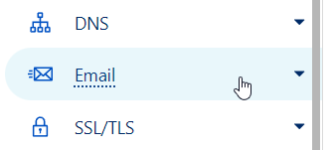
- Go to Emails, then Email Routing
- Click Get Started
- Click in Skip Getting Started or simple add any random email
- Click on "Destination addresses"

- Then on "Add destination address"
- Add the gmail address and click "Save"
- The click back to "Routing rules"

- Under the Catchall section, enable the Catchall email

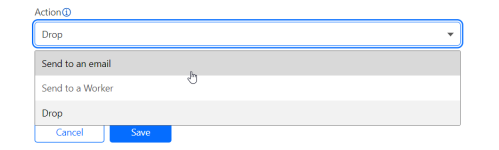
- Click "Edit", then change the "Action" from "Drop" to "Send to an email"
- Under the "Destination" drop down menu, select the gmail address added earlier, then click "Save"
- Now every email sent to any email within your domain "example.com" should be forwarded to your gmail address,
For example "[email protected]" will be forwarded to "[email protected]"
Using Gmail with Software/Scripts
Now in order for the Gmail to work with your software/script, you need to enable IMAP, verify 2FA and create an App Password,
Here are the steps required for this (it's literally copied from the previous guide, i know
):Enabling IMAP
- Now to use this Gmail, you'll have to enable IMAP or POP, both work good, but i personally prefer IMAP,
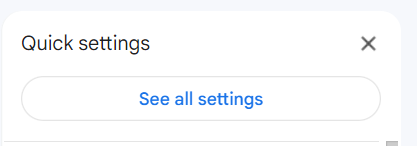
For that, first click the setting icon in the top right:
- Next, click on "See all settings"
- Go to "Forwarding and POP/IMAP"

- Click on "Enable IMAP"
- Leave the rest of options as they are, then click "Save changes"
- Now, in order for IMAP to work, we need to enable "2fa", that will require you a phone number or simply download backup codes,
Go to - Click "Get Started"
- There will be only option to use a phone number, but while adding a new one, click on "Use another backup option"
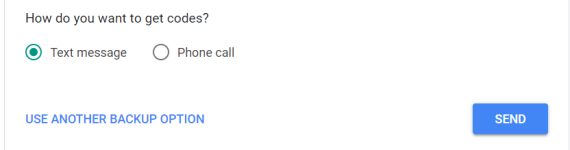
- Make sure to download the codes if you don't have (or added) phone number
- Next confirm with "I have my backup codes" or confirm your phone number
- Now, we need to generate a new App Password, for that go to
- Name your app with whatever name you see suitable
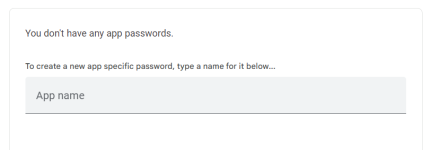
- Then click on create
- Your App password will show up, make sure to save it somewhere as you won't have access after clicking "Done"
Now, in order to use the Gmail IMAP, you'll have to use the following settings:
- IMAP Host: imap.gmail.com
- IMAP Port: 993
- Encryption: ON (SSL)
- IMAP Username: your Gmail address, in our example it's [email protected]
- IMAP Password: The App Password that you got earlier
How to get email variations for the catchall emails
- You can use random characters and numbers if you're using some software/script that allows you to do so
- Download a list of usernames and append the email at the end, you can easily do that by some text editor
- Use Spintax form with different names/surnames and even number, i believe this is the default setting for rankerx
